
Class 10: Working with Tables in HTML solutions. Complete Class 10 Working with Tables in HTML Notes.
NCERT Solutions for 10th Class Foundation of Information Technology – Working with Tables in HTML
NCERT 10th Working with Tables in HTML, class 10 Working with Tables in HTML solutions
Basic Table Tags in HTML
In HTML, tables are created by <table> tag. Data of tables can be in form of text or graphics. These tables are made up of rows and columns. An intersection of a row and a column is known as cell. The data in tables is contained in cells.
Each table may have an associated caption attribute (it provides a description about the table). Moreover, a summary attribute can also be included (for more precise description).
Basic tags that are used to create a table in HTML are as follows:
- Table Tag (<table>….</table>) It is used to insert a table in a Web page. It is a first tag, which starts and closes a table.
- Row Tag (<tr> </tr>) It is used to define a table rows. Table rows are group of the
header, footer and body sections that is created by using thead, tfoot and tbody elements. Generally, the first row of a table is referred to as the header section, the last row of a table are referred as the footer section and the middle rows in the table are referred as the body section. - Cell Tags (<td>….</td>, <th>….</th>) It is used to define data cells (current cells) or table header of the table. These tags are the data containers of the table. They can contain all sorts of HTML elements like text, images, lists, other tables etc.
- Caption Tags (<caption>….</caption>) It is used to define the title or caption for the table that provides a short description of the table’s purpose.
To Create a Table
Here is an example of HTML code for creating a table:
<html>
 <head> <title> Table </title> </head>
 <body>
 <table>
 <caption> Name of Students
 </caption>
 <tr>
 <td> Sunita</td>
 <td> Amita </td>
 <td> Ameesha </td>
 </tr>
 <tr>
 <td> Ankita </td>
 <td> Prachi </td>
 <td> Neha </td>
 </tr>
 <tr>
 <td> Esha </td>
 <td> Preeti </td>
 <td> Payal </td>
 </tr>
 </table>
 </body>
 </html>
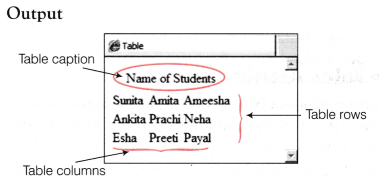
In the above code, we used a <table> tag which specifies a table that is to be inserted. After <table> tag, it arrives a <caption> tag, this <caption> tag is used to add headline in the table. Here, the caption is ‘Name of Students’. After <caption> tag, <tr> tag is used which specifies a new table row. There should be a </tr> tag in the end of each row.
Here, <tr> tag is mentioned three times. This means that three rows are added. The next tag is <td>, which denotes the data cells.
It has been put in front of every piece of information that you want to add in a cell and <td> tag is mentioned three times in each <tr> tag, i.e. each row will contain three data cells. At the end, the </table> tag closes a table.
THE <TABLE> TAG
The <table> tag is used to create tables in HTML. The table tags in HTML are <table> and </table>. Everything to be put in a table, should be enclosed between these two tags. Since, <table> is a container tag thus both the tags are required.
Syntax
 <table>
 </table>
Within the <table> tag, a variety of attributes can be added to determine the look of Table. You can specify width of the table, add border, background color, spacing between cells (cellspacing) and spacing between border of the cell and its content (cellpadding) in a table. The various attributes of <table> tag discussed in detail are as follows:
NCERT 10th Working with Tables in HTML, class 10 Working with Tables in HTML solutions
1. The border Attribute
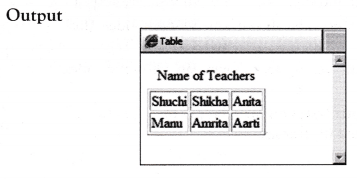
A border can be added to a table by using border attribute. The border attribute of <table> tag accepts values in pixels. The thickness of border can be adjusted as per the user’s requirement. By default, value of the border attribute is 0 (zero), i.e. no border is displayed in your table.
Example 1. To display border of a table using border attribute.
<html>
 <head> <title> Table </title> </head>
 <body>
 <table border = "3">
 <capti on> Name of Teachers </capti on>
 <tr>
 <td > Shuchi </td>
 <td> Shikha </td>
 <td> Anita </td>
 </tr>
 <tr>
 <td> Manu </td>
 <td> Amrita </td>
 <td> Aarti </td>
 </tr>
 </table>
 </body>
 </html>
2. The bordercolor Attribute
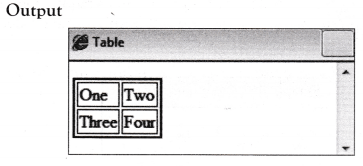
This attribute is used to specify the color of the table’s border. Color of your choice for the border to make it more attractive or to make its appearance consistent with the other tables in your Web page.
Example 2. To display a table with blue border using bordercolor attribute.
<html>
 <head> <title> Table </title> </head>
 <body>
 <table border="2" bordercolor="blue">
 <tr>
 <td> One </td> <td> Two </td>
 </tr>
 <tr>
 <td> Three </td> <td> Four </td>
 </tr>
 </table>
 </body>
 </html>
3. The frame Attribute
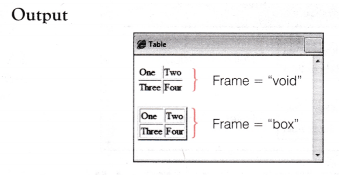
This attribute specifies which part of the tables borders will be visible. Hence, the frame attribute will always be used with the border attribute. The values that can be specified for frames are as follows:
- void outside borders are not shown.
- above top edge of the border is shown.
- below bottom edge of the border is shown.
- hsides top and bottom edges of the border are shown.
- lhs left edge of the border is shown.
- rhs right edge of the border is shown.
- vsides left and right edges of the border are shown.
- box all edges are shown on all four sides (like border).
- border all edges are shown on all four sides (default).
Thus, frame attribute contains 9 types of values that all can be specified for frames.
NCERT 10th Working with Tables in HTML, class 10 Working with Tables in HTML solutions
Example 3. To illustrate the use of frame attribute.
<html>
 <head><title> Table </title></head>
 <body>
 Ctable border="2" frame="void">
 <tr>
 <td> One </td> <td> Two </td>
 </tr>
 <tr>
 <td> Three </td> <td> Four</td>
 </tr>
 </table><br>
 <table border="2" frame="box">
 <tr>
 <td> One</td> <td> Two</td>
 </tr>
 <tr>
 <td> Three </td> <td> Four </td>
 </tr>
 < /table>
 </body>
 </html>
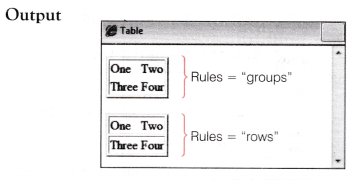
4. The rules Attribute
This attribute also works with border attribute of <table> tag. The rules attribute defines, which lines or rules to draw between rows and columns in your table.
The basic difference between the frame attribute and rules attribute is that the frame attribute is used to display a specific outer portion of a table border while the rules attribute is used to display a specific inside portion of a table border. The values that can be specified for rules attribute are as follows:
- none no rules are drawn or hides all interior borders.
- groups rules are drawn between row groups and column groups.
- rows rules are drawn between rows only.
- cols rules are drawn between columns only.
- all rules are drawn between all rows and all columns.
Thus, rules attribute contains 5 types of values that all can be specified for rules.
NCERT 10th Working with Tables in HTML, class 10 Working with Tables in HTML solutions
Example 4. To illustrate the use of rules attribute.
<html>
 <head> <title> Table </title></head>
 <body>
 <table border="2" rules = "groups"> <tr>
 <td> One</td> <td> Two </td>
 </tr>
 <tr>
 <td> Three </td> <td> Four </td>
 </tr>
 < /table><br>
 <table border ="2" rules ="rows">
 <tr>
 <td> One</td> <td> Two </td>
 </tr>
 <tr>
 <td> Three </td> <td> Four </td>
 </tr>
 </table>
 </body>
 </html>
5. The cellspacing and cellpadding Attribute
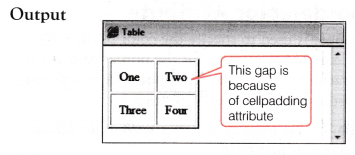
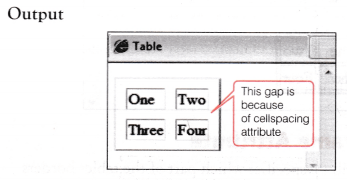
Cellpadding is used to specify the space (in pixels) between the borders of the cell and contents of the cell. Cellspacing is used to set the distance between two cells.
To control the spacing in the cells, the cellspacing and cellpadding attributes are used.
Example 5. To illustrate the use of cellpadding attribute.
<html>
 <head><title> Table </title></head>
 <body>
 <table border="2" cellpadding="10">
 <tr>
 <td> One </td> <td> Two </td>
 </tr>
 <tr>
 <td> Three </td> <td> Four</td>
 </tr>
 </table>
 </body>
 </html>
Example 6. To illustrate the use of cellspacing attribute.
<html>
 <head><title> Table </title></head>
 <body>
 <table border = "2" cellspacing="10">
 <tr>
 <td> One </td> <td> Two </td>
 </tr>
 <tr>
 <td> Three</td> <td> Four</td>
 </tr>
 </table>
 </body>
 </html>
6. The align Attribute
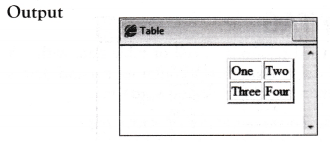
This attribute allows you to change the position of the table in a Web page.- It can have values left, right and center. The align attribute of <table> tag aligns complete table with respect to the text in the browser.
Example 7. To illustrate the use of align attribute.
<html>
 <head><title> Table </title></head>
 <body>
 <table border="2" align="right”>
 <tr>
 <td> One </td> <td> Two </td>
 </tr>
 <tr>
 <td> Three </td> <td> Four</td>
 </tr>
 </table>
 </body>
 </html>
7. The background Attribute
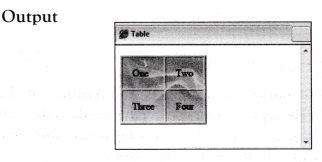
This attribute is used to set an image in the background of the table. It enables you to modify the background of your tables in HTML. You can specify an image by putting its path as the value of background attribute to set it as a background of the table.
Example 8. To add an image in the background to a table using background attribute.
<html>
 <head><title> Table </title></head>
 <body>
 <table border="2" cellpadding="15" background^'D:\images.jpg">
 <tr>
 <td> One </td> <td> Two </td>
 </tr>
 <tr>
 <td> Three </td> <td> Four</td>
 </tr>
 </table>
 </body>
 </html>
8. The bgcolor Attribute
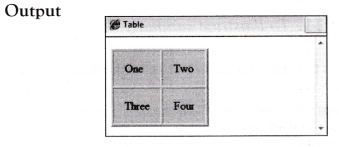
This attribute specifies the background color of a table. With bgcolor, you need to specify the desired background color. By default, color of the table is white.
Example 9. To add pink background color to a table using bgcolor attribute.
<html>
 <head><title> Table </title></head>
 <body>
 <table border = "2" cellpadding="15" bgcolor="pink”>
 <tr>
 <td> One </td> <td> Two </td>
 </tr>
 <tr>
 <td> Three </td> <td> Four </td>
 </tr>
 </table>
 </body>
 </html>
9. The height and width Attributes
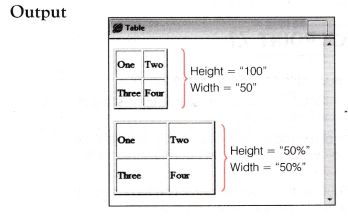
You can set the height and width of the table using height and width attributes. Height and width are specified in terms of pixels or percentage of the browser window.
Example 10. To specify desired height and width of a table using height and width attributes.
<html>
 <head><title> Table </title></head>
 <body>
 <table border="2” height="100" width="50">
 <tr>
 <td> One </td> <td> Two </td>
 </tr>
 <tr>
 <td> Three </td> <td> Four </td>
 </tr>
 < /table><br>
 <table border="2" height="50%" width="50%">
 <tr>
 <td> One </td> <td> Two</td>
 </tr>
 <tr>
 <td> Three </td> <td> Four </td>
 </tr>
 </table>
 </body>
 </html>
10. The summary Attribute
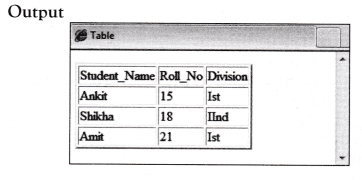
This attribute is used to provide extra information about the table and its contents. It is useful for non-visual Web browsers. This attribute has no visual effect in ordinary Web browsers.
Example 11. To illustrate summary attribute.
<html>
 <head><title> Table </title></head>
 <body>
 <table border ="2" summary="Information about students">
 <tr>
 <td> Student_Name </td>
 <td> Roll_No </td>
 <td> Division </td>
 </tr>
 <tr>
 <td> Ankit </td> <td> 15 </td>
 <td> 1st </1d>
 </tr>
 <tr>
 <td> Shikha </td> <td> 18 </td>
 <td> IInd </td>
 </tr>
 <tr>
 <td> Amit </td> <td> 21 </td>
 <td> 1st </td>
 </tr>
 </table>
 </body>
 </html>
THE <TD> TAG
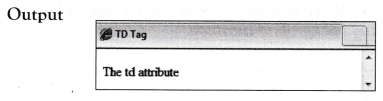
The <td> tag is used to specify a cell or table data within a table. It denotes Table Data. It is a container tag and that is why it must contain matching closing </td> tag.
Example 12. To show the use of <td> tag.
<html>
 <head><title> TD Tag </title></head>
 <body>
 <table>
 <tr> <td> The td attribute </td> </tr>
 </table>
 </body>
 </html>
1. The align Attribute
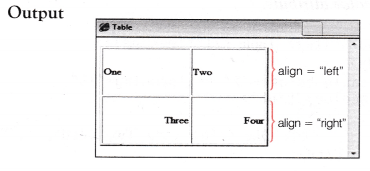
The table data can be aligned using align attribute. The align attribute is used with <td> tag. It can have any one of the three values-left, right and center. By default, the content of a cell in a table is left aligned.
Example 13. To display table cells in various alignments using align attribute with <td> tag.
<html>
 <head><title> Table </title></head>
 <body>
 <table border="2” height="80%" width=''70r'>
 <tr>
 <td align="left"> One </td>
 <td allign = "left"> Two </td>
 </tr>
 <tr>
 <td align = " right"> Three </td>
 <td align = " right"> Four </td>
 </tr>
 </table>
 </body>
 </html>
2. The width Attribute
This attribute is used to define the width of the cells in the table. It is used with <td> tag. The width of the cells is defined either in pixels or in percentage.
Example 14. To specify individual cell’s width using width attribute with <td> tag.
<html>
 <head><title> Table </title></head>
 <body>
 <table border="2">
 <tr>
 <td width="40%"> One </td>
 <td width="150"> Two </td>
 </tr>
 <tr>
 <td> Three </td> <td> Four</td>
 </tr>
 </table>
 </body>
 </html>
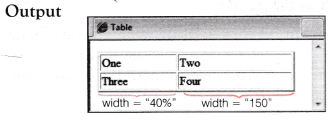
Here, it is noticeable that when the width attribute is used with <table> tag, it specifies the width of the table and when it is used with <td> tag, it specifies the width of the cells in table.
3. The height Attribute
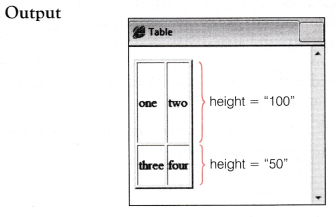
This attribute specifies the height of a cell. Normally, a cell takes up the space it needs to display the content. The height attribute is used to set a predefined height of a cell.
Example 15. To specify individual cell’s height using height attribute with <td> tag.
<html>
 <head><title> Table </title></head>
 <body>
 <table border="2">
 <tr>
 <td height="100"> one </td>
 <td> two </td>
 </tr>
 <tr>
 <td height="50"> three </td>
 <td> four </td>
 </tr>
 </table>
 </body>
 </html>
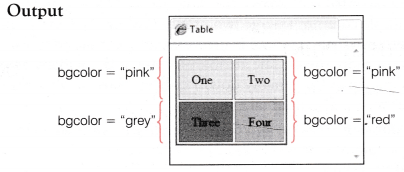
4. The bgcolor Attribute
In HTML, background of a table together with colors of rows and columns can be changed.
When bgcolor is used with <table> tag, it sets a background color for the entire table. On the other hand, when bgcolor is used with <tr> tag, it sets a background color for an individual row. When bgcolor is used with <td> tag, it sets a background color for an individual table cell.
Example 16. To display various background colors using bgcolor attribute.
<html>
 <head><title> Table </title></head>
 <body>
 <table borden="2” borderedor="blue" cellpadding="15">
 <tr bgcolor="pink">
 <td> One</tdXtd> Two </td>
 </tr>
 <tr bgcolor="red">
 <td bgtolor="grey”> Three </td>
 <td> Four </td>
 </tr>
 </table>
 </body>
 </html>
5. The background Attribute
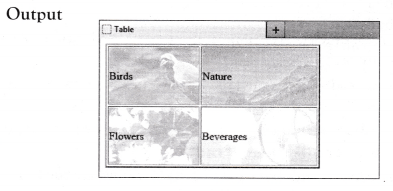
An image can also be inserted as the background image of a single cell. When background attribute is used with <table> tag, it sets a background image for the entire table. On the other hand, when background attribute is used with <tr> tag, it sets a background image for an individual row. When background attribute is used with <td> tag, it sets a background image for an individual table cell.
Example 17. To display individual cell’s background image using background attribute.
<html>
 <head><title> Table </title></head>
 <body>
 ktable border="2" height="80%" width="80%”>
 <tr>
 <td background = "birds . jpg">Birds</td>
 <td background^'nature.jpg">Nature</td>
 </tr>
 <tr>
 <td bac'kgfound="flowers.jpg">Flowers</td>
 <td backgroud="beverages.jpg">
 Beverages < / td>
 </tr>
 </table>
 </body>
 </html>
6. The rowspan and colspan Attributes
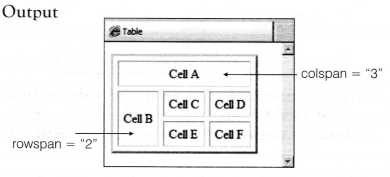
In HTML, uniform grid of columns and rows are created. But sometimes, we need some of the cells to be combined, and for this purpose, rowspan and colspan attributes are used. The colspan attribute allows the user to stretch a cell to span multiple columns (merge two or more columns). On the other hand, rowspan attribute is used to span multiple rows (merge two or more rows). The attributes, colspan (how many across) and rowspan (how many down) indicate, how many columns or rows, a cell should takeup.
Example of rowspan and colspan attributes is shown below:
<td rowspan = "2"> </td>
 <td colspan = "2"> </td>
Here, the rowspan attribute will merge two rows and colspan attribute will merge two columns.
Example 18. To create a table with cells having different row and column spans using rowspan and colspan attributes.
<html>
 <head><title> Table </title></head>
 <body>
 <table border="3" cellpadding="6" cellspacing="6">
 <tr>
 <td align="center” col span="3">Cell A</td>
 </tr>
 <tr>
 <td rowspan="2">Cell B</td>
 <td>Cell C</td>
 <td>Cell D</td>
 </tr>
 <tr>
 <td>Cell E</td>
 <td>Cell F</td>
 </tr>
 </table>
 </body>
 </html>
7. The valign Attribute
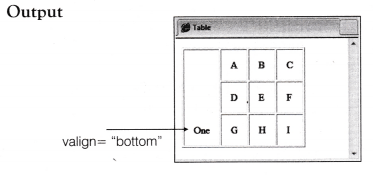
This attribute determines the placement of content in a cell. This attribute is used in <td> tag to set the vertical alignment of that particular cell’s content, when the cell have span of more than one rows. The values that can be used are as follows:
Top It will put the text as close to the top of the cell as it is possible.
Middle It will center the text in the cell.
Bottom It will put the text as close to the bottom of the cell as it is possible.
NCERT 10th Working with Tables in HTML, class 10 Working with Tables in HTML solutions
Example 19. To vertically align a cell’s content using valign attribute.
<html>
 <head><title> Table </title> </head>
 <body>
 <table border="l">
 <tr>
 <td valign="bottom" rowspan="3">One </td>
 <td> A </td> <td> B </td> <td> C </td>
 </tr>
 <tr>
 <td> D </td> <td> E </td> <td> F </td>
 </tr>
 <tr>
 <td> G </td> <td> H </td> <td> I </td>
 </tr>
 </table>
 </body>
 </html>
THE <TR> AND <TH> TAGS
The <tr> tag stands for Table Row. This tag is used to create a new row of data in a table. The <tr> tag also uses similar attributes as that of <td> tag except rowspan and colspan.
The <th> tag stands for Table Header. This tag is used for specifying a table’s header. It displays the content of a table in heading style and this content appears in bold. This is the only difference between <th> and <td> tags. <th> accepts the similar attributes as that of <td> tag.
Example 20. To show the use of <tr> and <th> tags.
<html>
 <head><title> Table </title></head>
 <body>
 <table border = "l" cellpadding="15">
 <tr>
 <th> Tag </th> <th> Stands For </th>
 </tr>
 <tr>
 <td>tr</td> <td> Table Row </td>
 </tr>
 <tr>
 <td> th </td> <td> Table Header </td>
 </tr>
 </table>
 </body>
 </html>
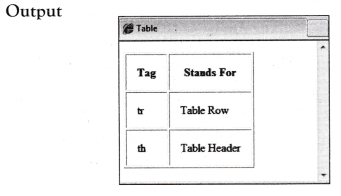
TABLE HEADER, BODY AND FOOTER
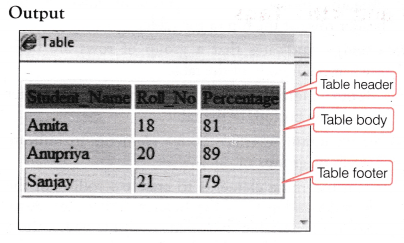
Tables can be divided into three portions as a head, a body and a foot. The head and foot are rather similar to headers and footers in a Word processed document that remain the same for every page, while the body is the main content holder of the table.
The three elements for separating the head, body and foot of a table are as follows:
- <thead> indicates that a group of rows are the header rows at the top of the table.
- <tbody> indicates that a group of rows are body rows or main body of the table.
- <tfoot> indicaffes that a group of rows are the footer rows at the bottom of the table.
A table may contain several <tbody> elements to indicate different pages or groups of data.
Browsers can use these elements to enable scrolling of the table body independently of the header and footer. Also, when printing a large table that spans multiple pages, these elements can enable the table header and footer to be printed at the top and bottom of each page.
The <thead>, <tbody> and <tfoot> tags contain various attributes such as align, bgcolor and valign.
NCERT 10th Working with Tables in HTML, class 10 Working with Tables in HTML solutions
Example 21. To show the use of <thead>, <tbody> and <tfoot> tags.
<html>
 <head> <title> Table </title> </head>
 <body>
 <table border="2">
 <thead bgcolor="grey">
 <tr>
 <td> Student_Name </td>
 <td> Roll_No </td>
 <td> Percentage </td>
 </tr>
 </thead>
 <tbody bgcolor="pink”>
 <tr>
 <td>Amita </td>
 <td> 18 </td>
 <td> 81 </td>
 </tr>
 <tr>
 <td> Anupriya </td>
 <td> 20 </td>
 <td> 89 </td>
 </tr>
 </tbody>
 <tfoot bgcolor=”yel1ow">
 <tr>
 <td> Sanjay </td>
 <td> 21 </td>
 <td>79 </td>
 </tr>
 </tfoot>
 </table>
 </body>
 </html>
EVENT HANDLING IN HTML TABLES
In HTML, events are features that allow users to add interactivity between the Web page and its visitor.
An event is an action that is performed by the user, such as by processing a key or on mouse dick. An event handler allows you to run a particular code, which is associated with that particular event. An event is activated, when you click the object, on which you apply the event. Some of the events available for HTML 5 (latest version) are given below:
offline, onchange, onclick, ondrag, onerror, onfocus, oninput, oninvalid, ononline, onselect, onwaiting etc.
Example 22. To illustrate the use of event handling.
<html>
 <head> <title> Table with Event Handling </title>
 </head>
 <body>
 <table border="2" onclick= "alertt'This is event handling in HTML tables')")
 <tr>
 <td> One </td> <td> Two </td>
 </tr>
 <tr>
 <td> Three </td> <td> Four </td>
 </tr>
 </table>
 </body>
 </html>
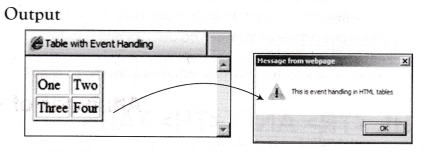
Onclick event is activated when you click the object (table) on which you apply the event.
Attributes of <table> Tag
| Attributes | Explanation | Syntax |
| border | Add border to the table. (Takes value in pixels) | <table border=”pixel”> |
| bordercolor | Specifies the color of table’s border. | <table bordercolor=”color_name| hex_number|rgb_number”> |
| frame | Specifies which part of the table’s border will be visible. (Outer border) | <tableframe=”void|above|below|hsides|lhs|rhs|vsides|box|border'”> |
| rules | Specifies which lines or rules to draw between rows and columns. | <table rules=”none | groups | rows | cols | all”> |
| cellpadding | Specifies the space (in pixels) needed between the edges of cells and its contents. | <table cellpadding=”pixel”> |
| cellspacing | Specifies the space (In pixels) between two cells. | <table cellspacing=”pixel'”> |
| align | Specifies the alignment of the table in a Web browser. | <table align=”left | right | center”> |
| background | Used to set an image in background of the table. | <table background=”path | image name”> |
| bgcolor | Specifies the background color of the table. | <table bgcolor= “color name|hex_number|rgbjiumber”> |
| height | Set the height of the table. (In pixels or percentage) | <table height=”pixels | percentage’> |
| width | Set the width of the table. (In pixels or percentage) | <table width-“pixels | percentage’> |
| summary | Provides information about the table. | <table summary=”‘text”> |
Attributes of <td> and <th> Tags
| Attributes | Explanation | Syntax |
| align | Used to align the table data. | <td|th align= “left|right center”> |
| height | Used to define the height of the cell. | <td | th height=” pixel | percentage”^ |
| width | Used to define the width of the cell. | <td | th width=”pixel | percentage’^ |
| bgcolor | Specifies the background color of an individual cell. | <td|thbgcolor=”colorname|hexnumber|rgb_number“> |
| background | Specifies the background image of an individual cell. | <td|th background=”path | image name”> |
| rowspan | Used to span multiple rows, i.e. how many rows a cell should take. | <td|th rowspan=”number”> |
| colspan | How many columns a cell should span across. | <td|th colspan=”number”> |
| valign | Set the vertical alignment of that particular cell’s content (when rowspan is more than one row). | <td|th valign=”top bottom | middle”> |
Attributes of <tr> Tag
| Attributes | Explanation | Syntax |
| align | Specifies the alignment of the row content. | <tr align = “left | right | center” > |
| bgcolor | Specifies the background color of an individual row. | <trbgcolor=”color_name|hexjiumber|rgbnumber”> |
| background | Specifies a background image for that particular row. | <tr background=”path | image name”> |
| valign | Set the vertical alignment of the text of the cells inside the element. | <tr valign=”top | bottom | middle”> |
NCERT 10th Working with Tables in HTML, class 10 Working with Tables in HTML solutions
NCERT Solutions for 10th Class Foundation of Information Technology: Download PDF
NCERT Solutions for 10th Class Foundation of Information Technology – Inserting Images and Links in HTML
Chapterwise NCERT Solutions for Class 10 Foundation of Information Technology :
- Internet Basics
- Internet Services
- Database Concepts
- Microsoft Access
- HTML (HyperText Markup Language)
- Inserting Images and Links in HTML
- Working with Tables in HTML
- Introduction to XML
- Societal Impacts of IT
About NCERT
The National Council of Educational Research and Training is an autonomous organization of the Government of India which was established in 1961 as a literary, scientific, and charitable Society under the Societies Registration Act. Its headquarters are located at Sri Aurbindo Marg in New Delhi. Visit the Official NCERT website to learn more.